Kouzee: connecting design with real products
What I learned building an app that turns inspiration images into purchasable products, and why the hard problem was not the AI.
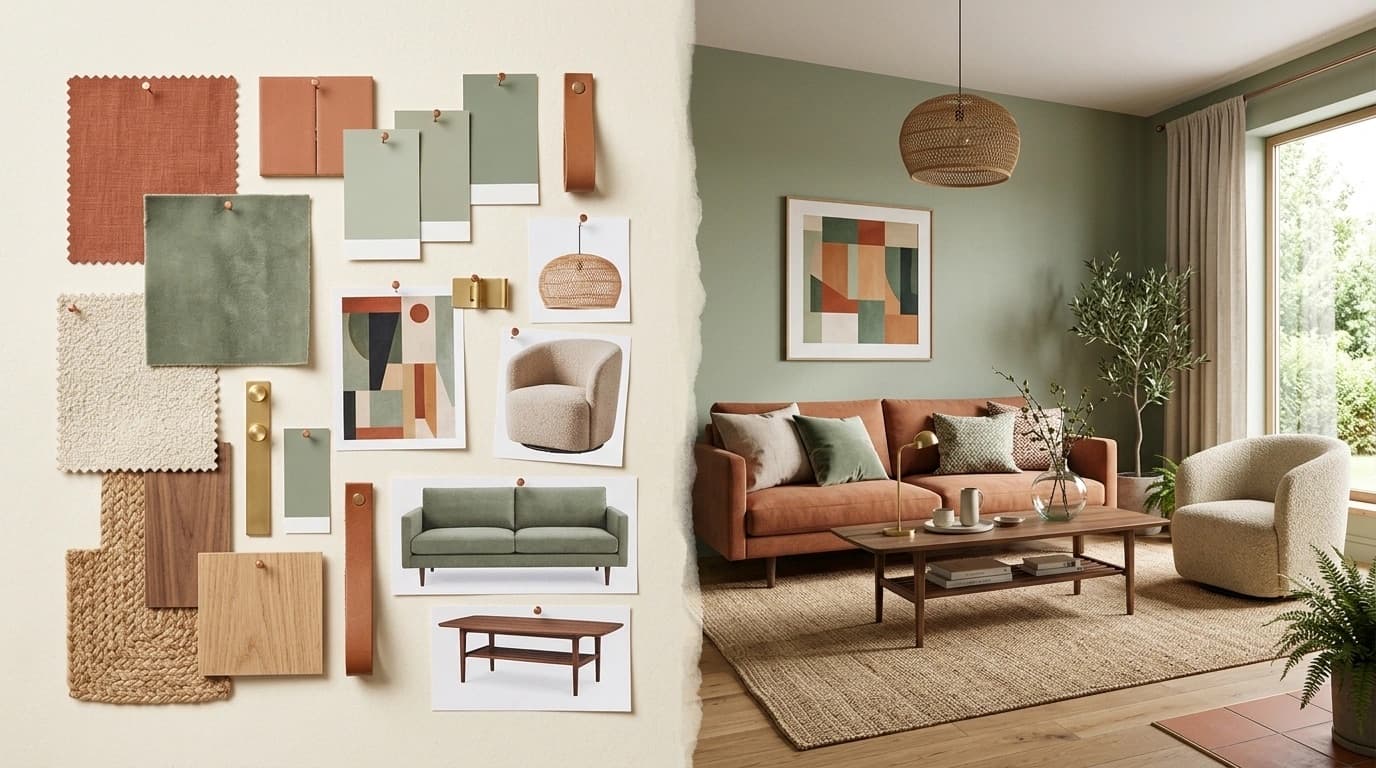
After nine months of development I shipped Kou: an AI assistant for interior design that talks with you, searches through nearly 30,000 real products in the catalogue, and runs tasks inside the platform. Here is what I learned building it.
If Claude or ChatGPT are general-purpose assistants, Kou is the same idea trained for exactly one thing: supporting the creative and commercial process of designers, architects and brands. Below is what it can do today, how it differs from the image generators you already know, and which part cost me more than I expected.
Why an assistant and not another image generator

Kou is a conversational agent built into Kouzee. I make the comparison to Claude on purpose: you use it the same way — you write what you need in plain language — but the reach is different. A general assistant knows a little about everything; Kou knows the catalogue, with prices and stock updated in real time, and can act on your boards and projects inside the platform.
It took me a while to find where the real bottleneck was. It is not in generating ideas: it is in turning them into decisions someone can act on. Studios save almost twice as much time imagining as they do specifying, and that second half is what I decided to attack.
AI does not replace people’s work. It amplifies it.
What it can do today
Finds the right product, not a similar one
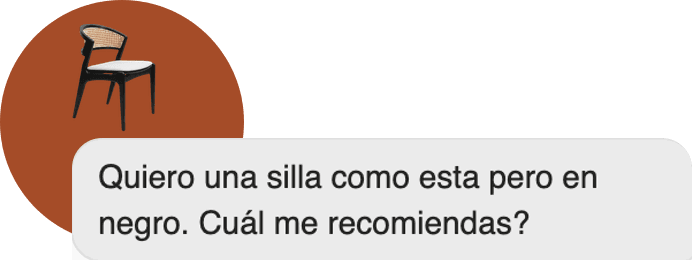
Kou talks with you to understand the project, then searches the catalogue with concrete filters: category, maximum budget, number of options. You can ask for “a chair like this one but in black”, or start from a reference photo — visual search finds products similar to an image, even one from Pinterest.
Helps you make better images
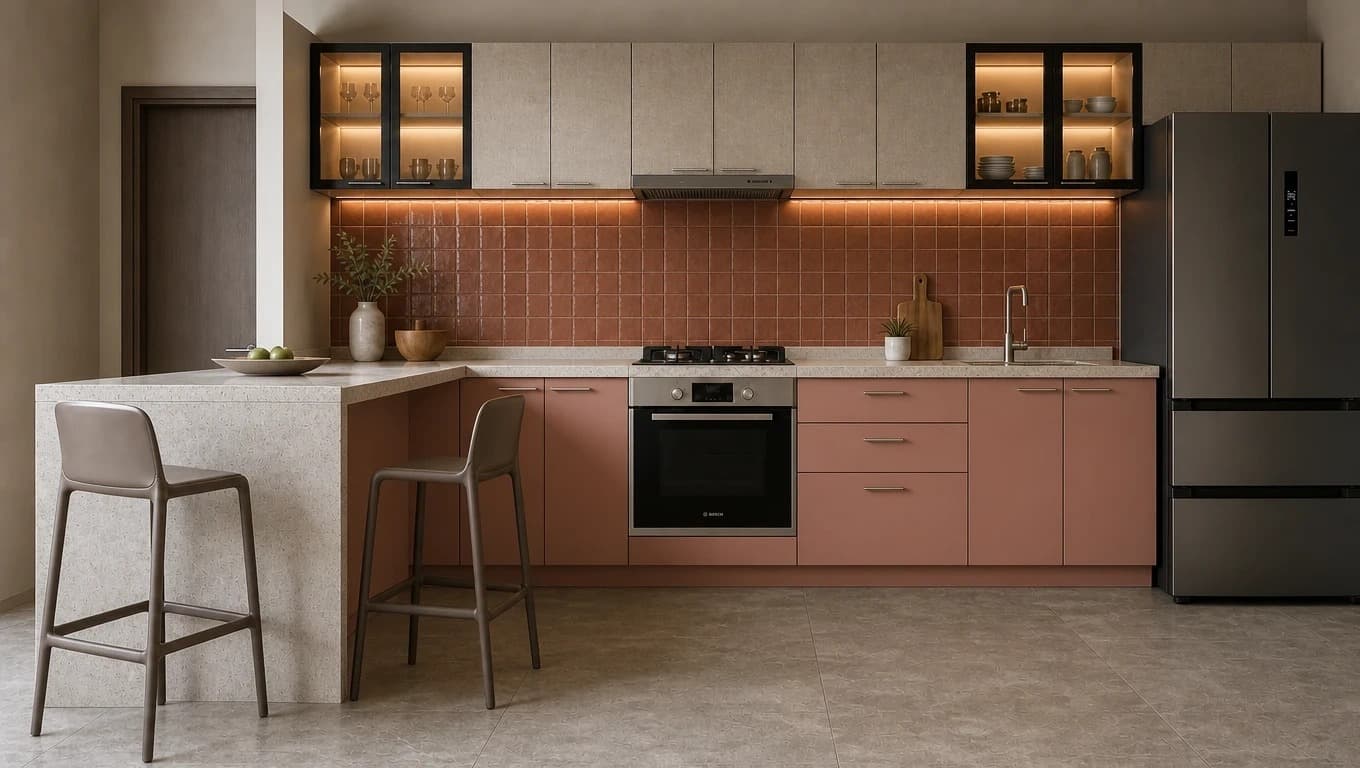
A good visual result depends on a good prompt, and that was one of the first walls I hit: people should not have to know how to write one. Kou turns a vague idea into precise instructions for the image models, and you can attach SketchUp captures, floor plans or photos of the space to apply materials and textures gradually: try a porcelain tile, change a colour, see how a product fits before buying it.
Builds quotes and runs tasks
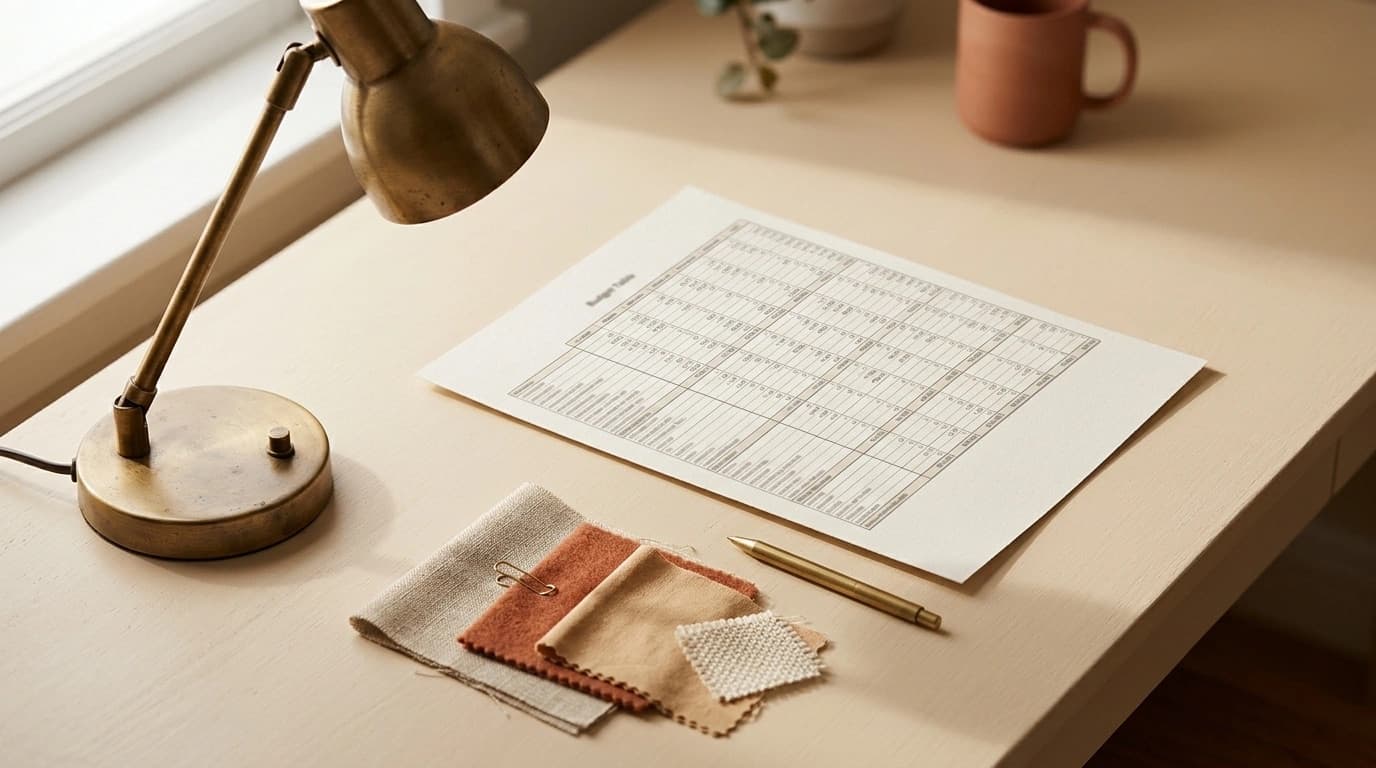
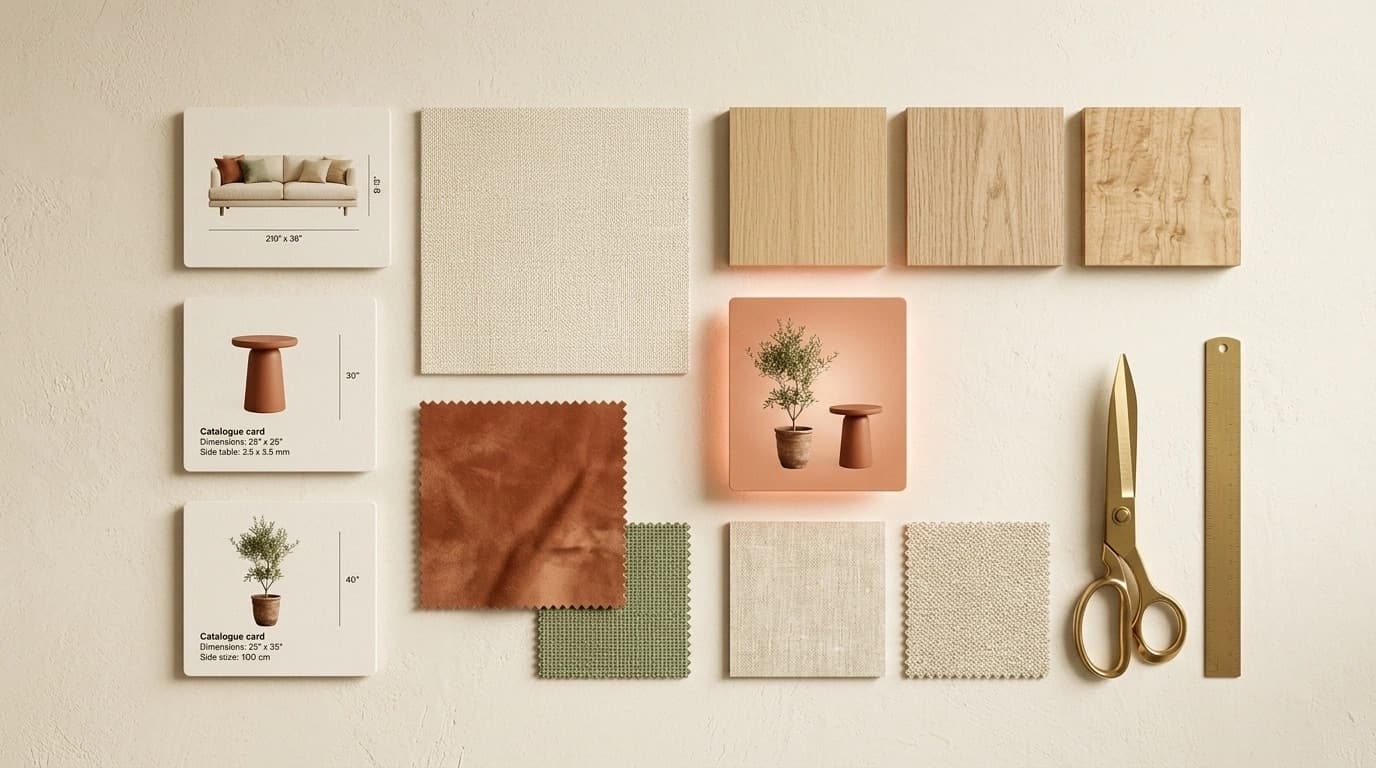
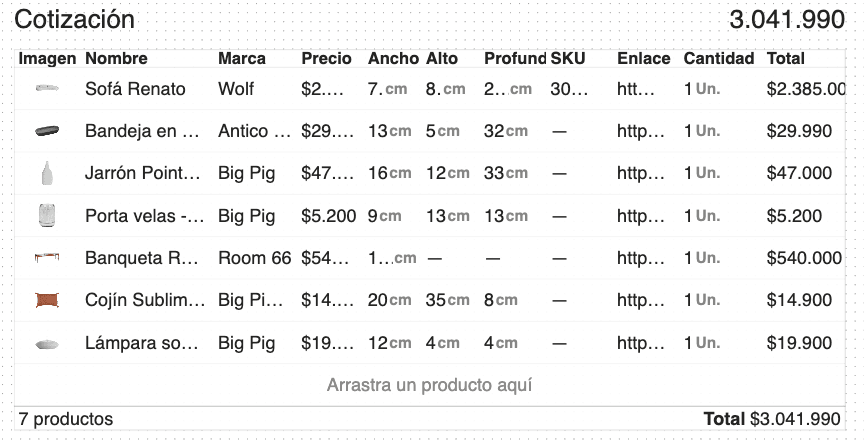
This is the biggest difference from an ordinary chat. Kou creates quotes organised as tables inside the board, with area calculations and current prices, editable by hand and exportable to Excel or PowerPoint so they fit the workflow you already have. It also organises projects, moves items between groups, and leaves a history of every action it took.
Remembers how you work
Kou has short and long-term memory: you can tell it your preferences — “I like Nordic style”, “always show me three alternatives” — and it applies them in later conversations. Memories can be personal or shared with your team, and its tone is configurable with your own instructions.
Sees what you show it
Kou “sees” the context you hand it along with the message. If you select elements on the board and write to it, it understands you mean exactly those. The more precise the selection, the more precise the answer.
How to start
- Create your account. Credit usage is transparent: Kou asks for confirmation before running anything that costs.
- Start with one concrete task. A product search with a maximum budget, or a quote table, is the fastest way to understand how it works.
- Attach context. Reference images, SketchUp captures or catalogue items improve accuracy a lot.
- Join a workshop. I run free sessions where I show design methods and the parts of the platform people miss, with credits to keep experimenting.
What comes next
It is the most ambitious thing I have built so far, and this is only the first public version. On the roadmap: automatic supplier quotes by email, brand manual integration so presentations carry your visual identity, and automatic generation of presentation brochures.
Ideas and learnings, once a month.